 <Tamim Likhon/>
What Is Isolate?
Isolate is an app internet blocker for Android. Its job is simple: choose the apps that should lose network access, choose whether to block Wi-Fi, mobile data, or both, then let the rest of the phone keep working normally. That makes it different from airplane mode, system-wide Wi-Fi toggles, and basic screen-time reminders. Isolate works at the network access layer, so the blocked app is forced to behave as if the internet is unavailable.
The app is especially useful when the problem is not the whole phone. Most people do not want to disconnect maps, messages, banking, email, calendar, or emergency communication just to stop one app from refreshing. They want YouTube to stop loading during work, Instagram to stop pulling background data, or a mobile game to stop connecting during a study session. Isolate is built for that exact middle ground: keep Android useful, but remove internet access from the apps that create distraction, data waste, or testing noise.
On Google Play, Isolate is listed as a Productivity app by Tamim Likhon. The listing describes it as an app blocker and no-root firewall that can block internet, Wi-Fi, and mobile data per app. The same listing says it uses Android VPNService locally on the device, does not collect user data, and does not share user data with third parties. Those details matter because an internet blocker is a trust-sensitive tool. Users need to know whether their traffic is leaving the phone, whether an account is required, and whether the blocker is adding another data-collection layer.
Why Block Internet Per App?
Blocking the whole internet is a blunt instrument. It can work for a short detox, but it breaks too many legitimate workflows. Per-app blocking is more precise. It lets you protect a focused activity without pretending that every connected feature on the phone is bad. A student might need dictionary, notes, calendar, and classroom apps while blocking short-form video. A remote worker might need Slack and email while blocking a social feed. A developer might need logs and a browser while forcing one test app into an offline state.
Per-app blocking also solves the background data problem. Many apps are not only distracting when opened; they also keep checking for updates, preloading media, syncing feeds, and sending notifications. That background activity can drain a limited mobile plan and keep the attention loop alive. By blocking mobile data for selected apps, you can make those apps quieter when you are away from Wi-Fi. By blocking Wi-Fi too, you can make the restriction stricter during planned focus sessions.
There is also a behavioral advantage. A timer, focus mode, or reminder still depends on the user choosing not to bypass it. A local Android firewall creates a little more friction. The app can still be installed, and the phone can still be connected, but the selected app cannot simply refresh its feed. That makes Isolate useful for people who already know that soft reminders are too easy to ignore.
Features
Isolate focuses on practical network controls rather than a crowded dashboard of unrelated productivity ideas. The important features are the ones users need every day: choose apps, choose connection types, activate a focus mode, and trust that the blocker is doing its work locally.
Block Wi-Fi per app
Cut selected apps off from Wi-Fi while leaving the rest of the phone online. This is useful when an app should work offline at home, school, or the office.
Block mobile data
Stop apps from using cellular data when the plan is limited, metered, or expensive. Isolate helps keep background data under control without disabling mobile data for the whole device.
Block both connections
For stronger focus, block both Wi-Fi and mobile data so a selected app cannot quietly switch networks when one connection is unavailable.
Focus modes
Use work, study, sleep, or custom modes to turn app blocking into a repeatable routine instead of a one-time setting buried in Android menus.
No root required
Isolate does not require rooting your Android phone. It uses Android platform capabilities that normal users can enable safely.
VPNService architecture
The app creates a local VPN interface on the device so it can decide which app traffic should be allowed or blocked.
Privacy first
The Play Store listing states that Isolate collects no data and shares no data. Its blocking model is local and does not require an outside VPN server.
Battery friendly
Blocking noisy network access can reduce needless background connections. The goal is simple enforcement without turning the blocker itself into a heavy always-on distraction.
How It Works
Android has a platform API called VPNService. It allows an app, with user permission, to create a virtual network interface. Many people associate the word VPN with a commercial privacy VPN that forwards traffic through a remote server in another country. VPNService is broader than that. It can also be used locally on the phone to inspect routing decisions and decide which traffic should be allowed.
Isolate uses that local VPNService model for firewall behavior. When the user enables blocking, Android treats Isolate as the active VPN interface. Isolate can then enforce rules for selected apps. If an app is allowed, it can continue to use the network. If an app is blocked, Isolate prevents that app from completing internet connections. The important distinction is that the VPN interface does not necessarily mean traffic is being sent to a remote VPN provider. In Isolate's case, the product claim is local blocking on the device.
That architecture is why Isolate can work without root. Traditional firewalls often need privileged access to low-level packet filtering features. Root-based tools can be powerful, but rooting a device changes its security model and is not realistic for most users. VPNService gives ordinary Android users a safer path to per-app blocking. The user grants permission, Android shows a VPN indicator, and the app enforces the chosen rules.
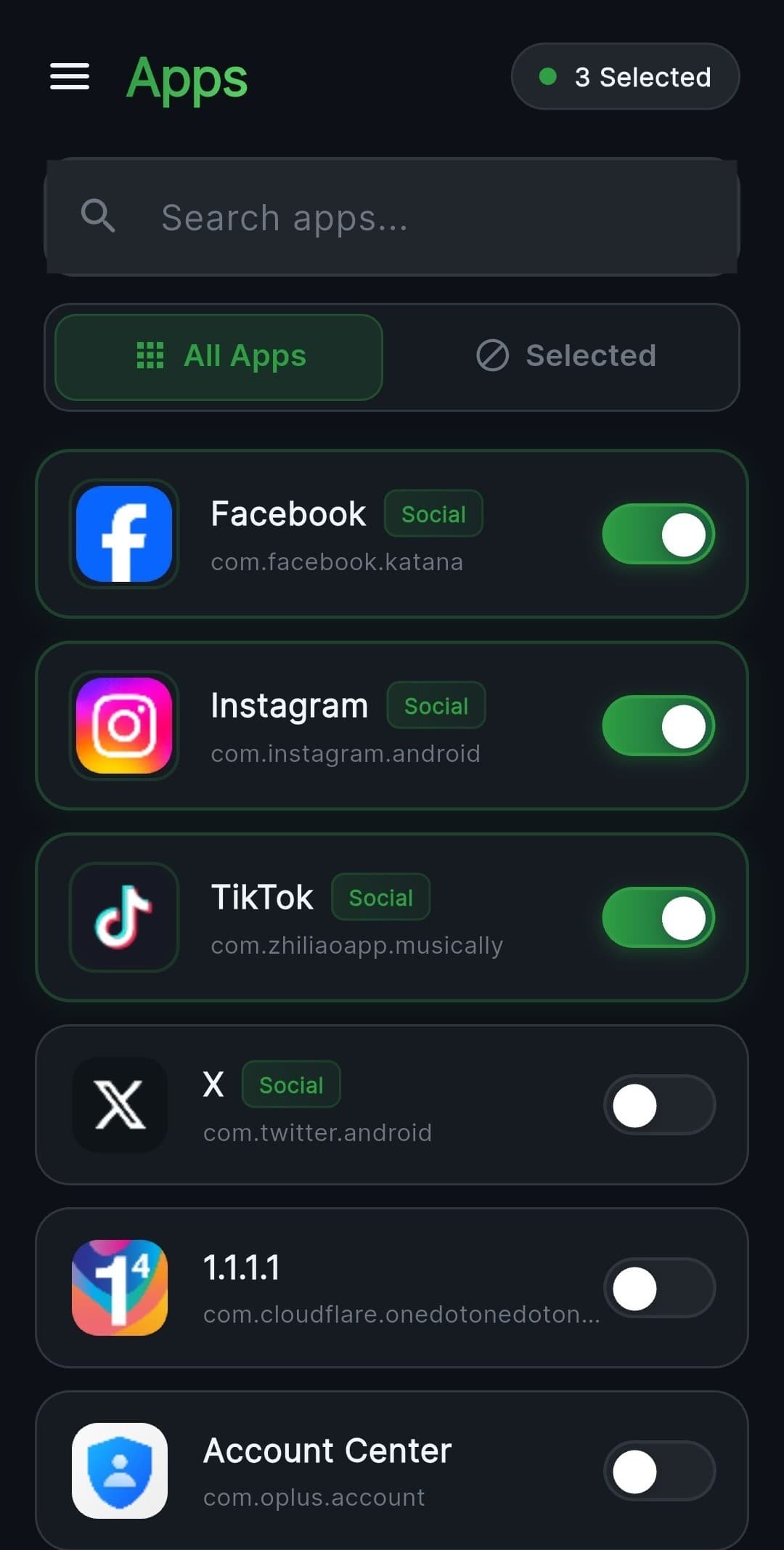
The experience should remain understandable even if the underlying network model is technical. Open Isolate, review the installed apps, choose what should be blocked, select Wi-Fi, mobile data, or both, then start a focus mode or keep the rule active. The goal is not to teach every user packet routing. The goal is to give users reliable control in language they already understand.
Common Use Cases
Block YouTube during work
Keep YouTube installed for learning and entertainment, but block its internet access during deep work hours so recommendations and autoplay cannot pull attention away.
Stop Instagram background data
Social apps often refresh feeds, stories, messages, and media in the background. Blocking mobile data can reduce unwanted usage while leaving important apps connected.
Block games
Many games rely on online rewards, events, ads, and multiplayer loops. Blocking internet access can make them less tempting during school, work, or bedtime.
Reduce data usage
Users on limited plans can block data-heavy apps from mobile data while still letting essentials such as maps, banking, and messaging stay online.
Improve focus
A focus mode works best when it removes the source of interruption. Isolate adds network friction so distracting apps cannot simply refresh when the user is tired or bored.
Child device management
Parents can use per-app internet blocking as one practical layer of supervision on a child device, especially for apps that should remain installed but not always connected.
Testing apps offline
QA testers can block one app while keeping the rest of the phone online, which makes it easier to test offline states, timeout handling, and cached content.
Developer workflows
Developers can check whether their app fails gracefully when the network is unavailable, without constantly toggling device-wide airplane mode.
Comparison With Other Android Firewall Options
The Android firewall space has strong tools, and different users need different levels of control. A fair comparison should not pretend that one app is best for every person. Isolate is most compelling for users who want a no-root app internet blocker with a clean focus-oriented workflow.
| Tool | Best for | How Isolate differs |
|---|---|---|
| NetGuard | Detailed no-root firewall control for technical users. | NetGuard is a mature Android firewall with granular network rules. Isolate is positioned more directly around focus, simple per-app internet blocking, and fast mode-based control. |
| RethinkDNS | DNS filtering, firewall rules, and privacy tooling in one advanced app. | RethinkDNS is powerful for users who want DNS-level filtering and deeper network controls. Isolate keeps the experience narrower: block selected apps from Wi-Fi, mobile data, or both with a productivity-first interface. |
| AFWall+ | Root-based firewall rules for users who intentionally manage rooted devices. | AFWall+ can be excellent on rooted phones, but root access is a major requirement. Isolate is built for everyday Android users who want a no-root firewall approach. |
| Generic internet blocker apps | Simple blocking if the app is trustworthy and actively maintained. | Many apps promise blocking, but their privacy model, maintenance, and network architecture vary. Isolate makes its local VPNService approach, no-root model, and Play Store data-safety claims part of the product story. |
Privacy
Any app that touches network access has to earn trust. The strongest privacy claim for Isolate is that its blocking happens locally through Android VPNService. The app does not need to behave like a commercial VPN that sends browsing traffic to an external server. Instead, it uses the VPNService interface as a local firewall layer for selected apps.
The Play Store data safety section for Isolate lists no data shared with third parties and no data collected. The listing also describes the app as account-free and focused on local blocking. That is the right posture for a productivity firewall: the tool should remove distraction and waste, not create a new profile of the user.
Users should still understand the Android permission prompt. Android will show that a VPN connection is active because VPNService is the system mechanism being used. That indicator is expected. For Isolate, the relevant question is where traffic goes and what data is collected. The product answer is local control, no external VPN server for app blocking, no account requirement, and no Play Store data collection declaration.
Screenshots
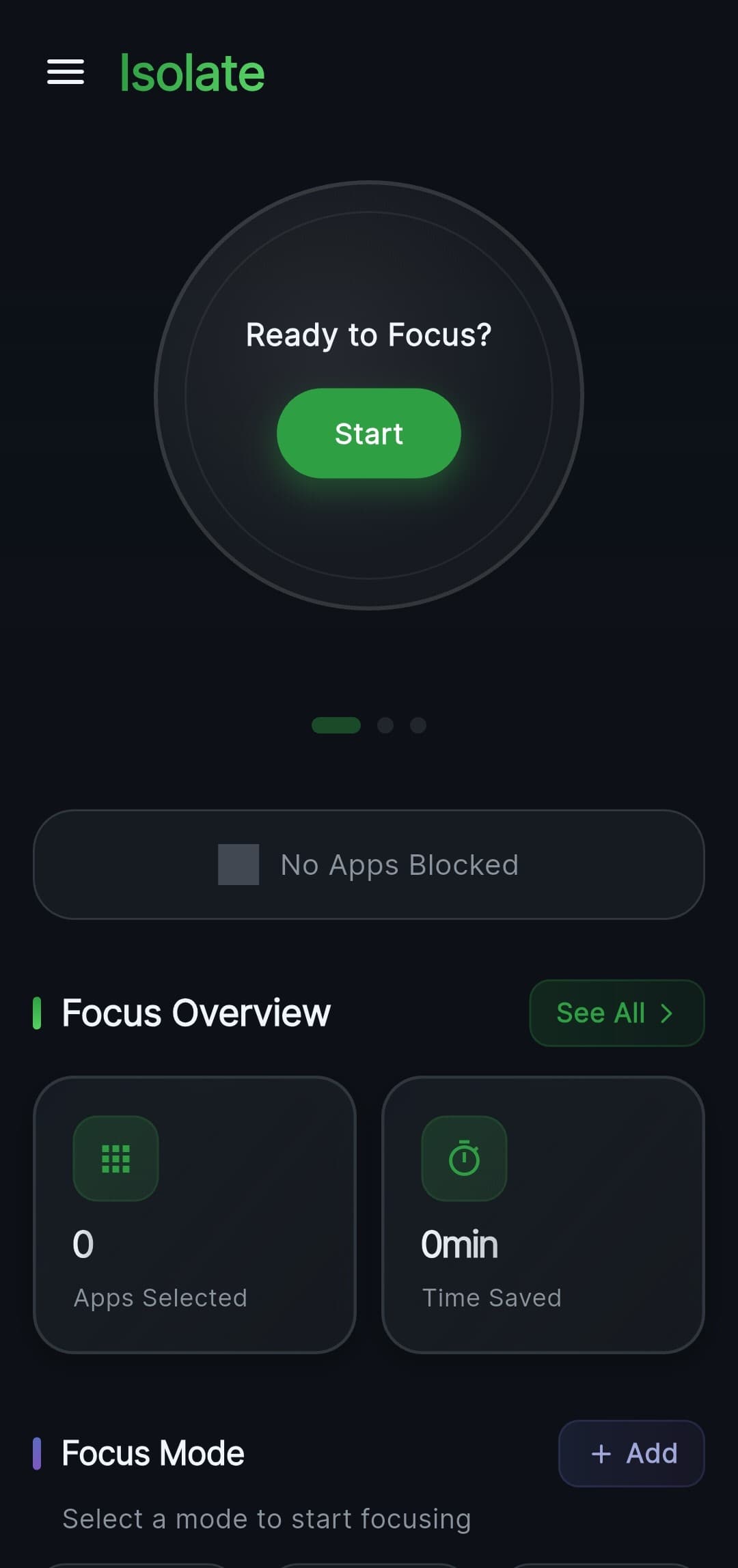
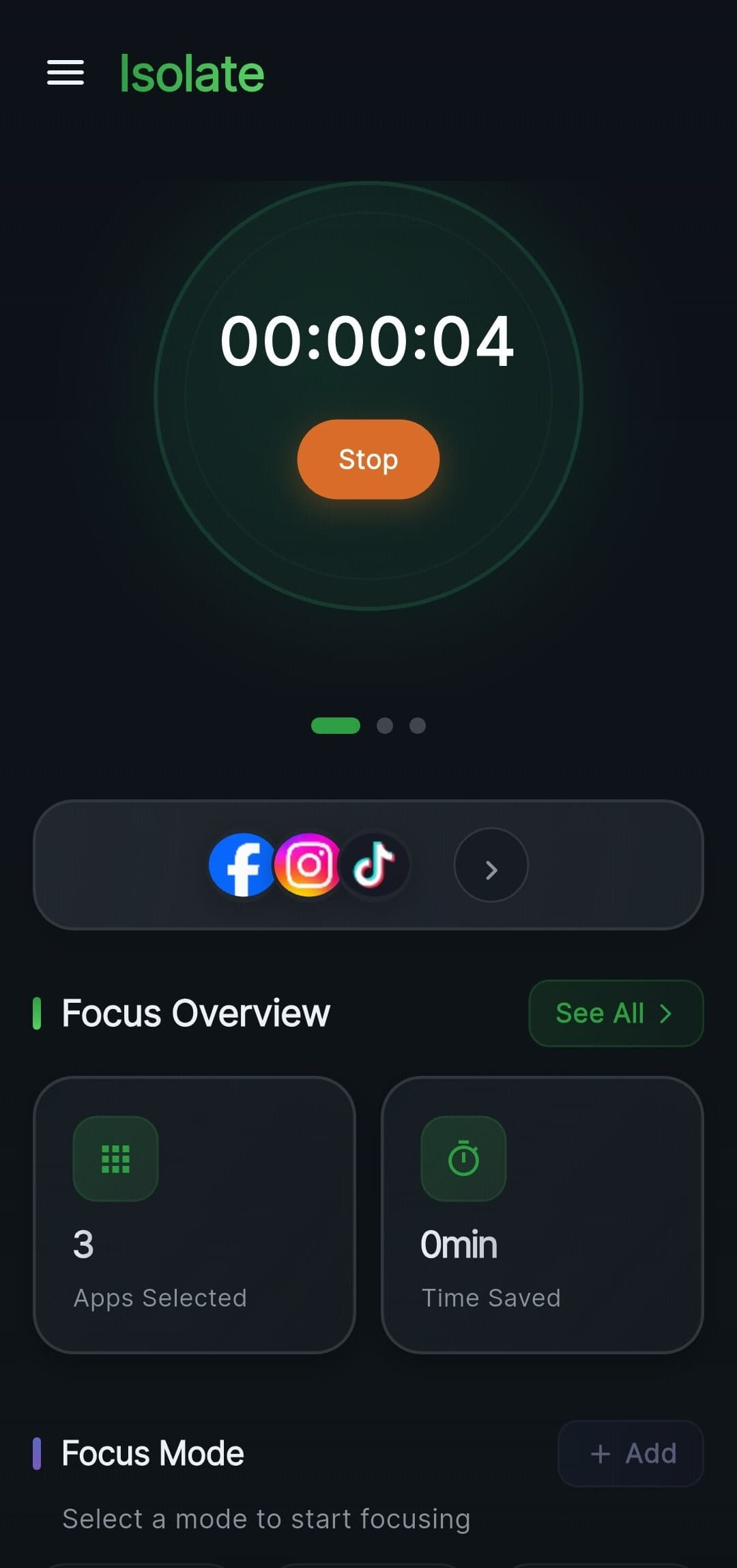
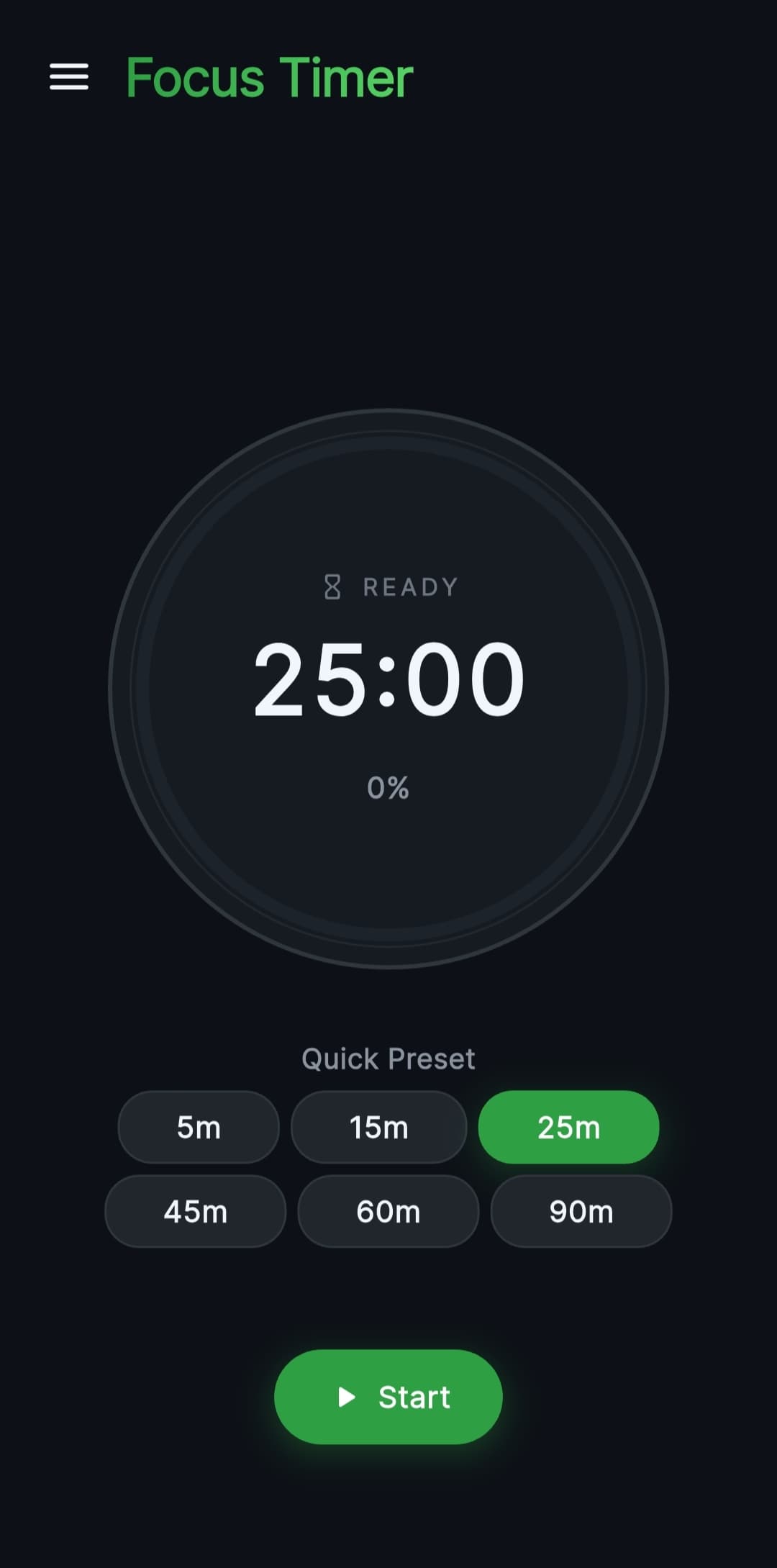
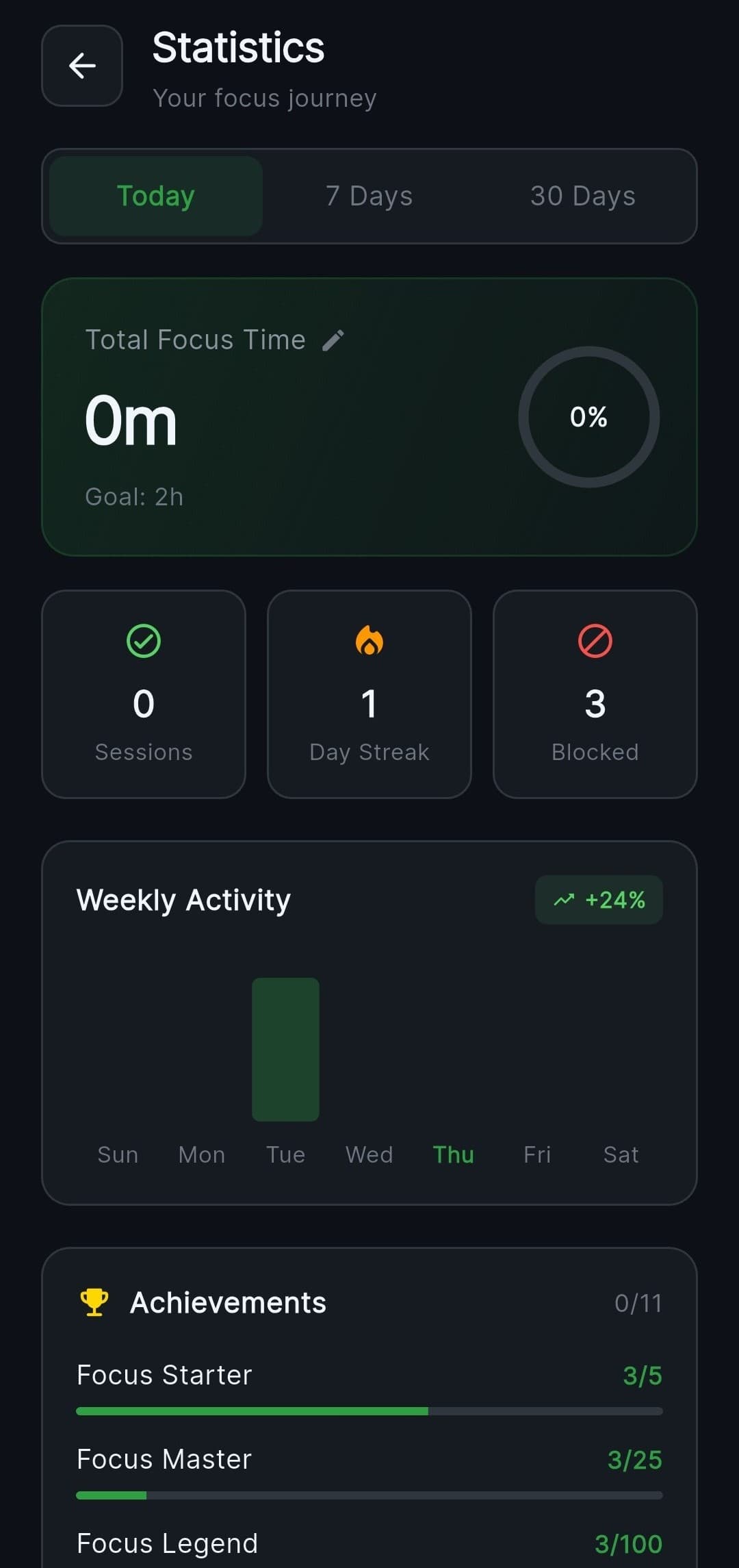
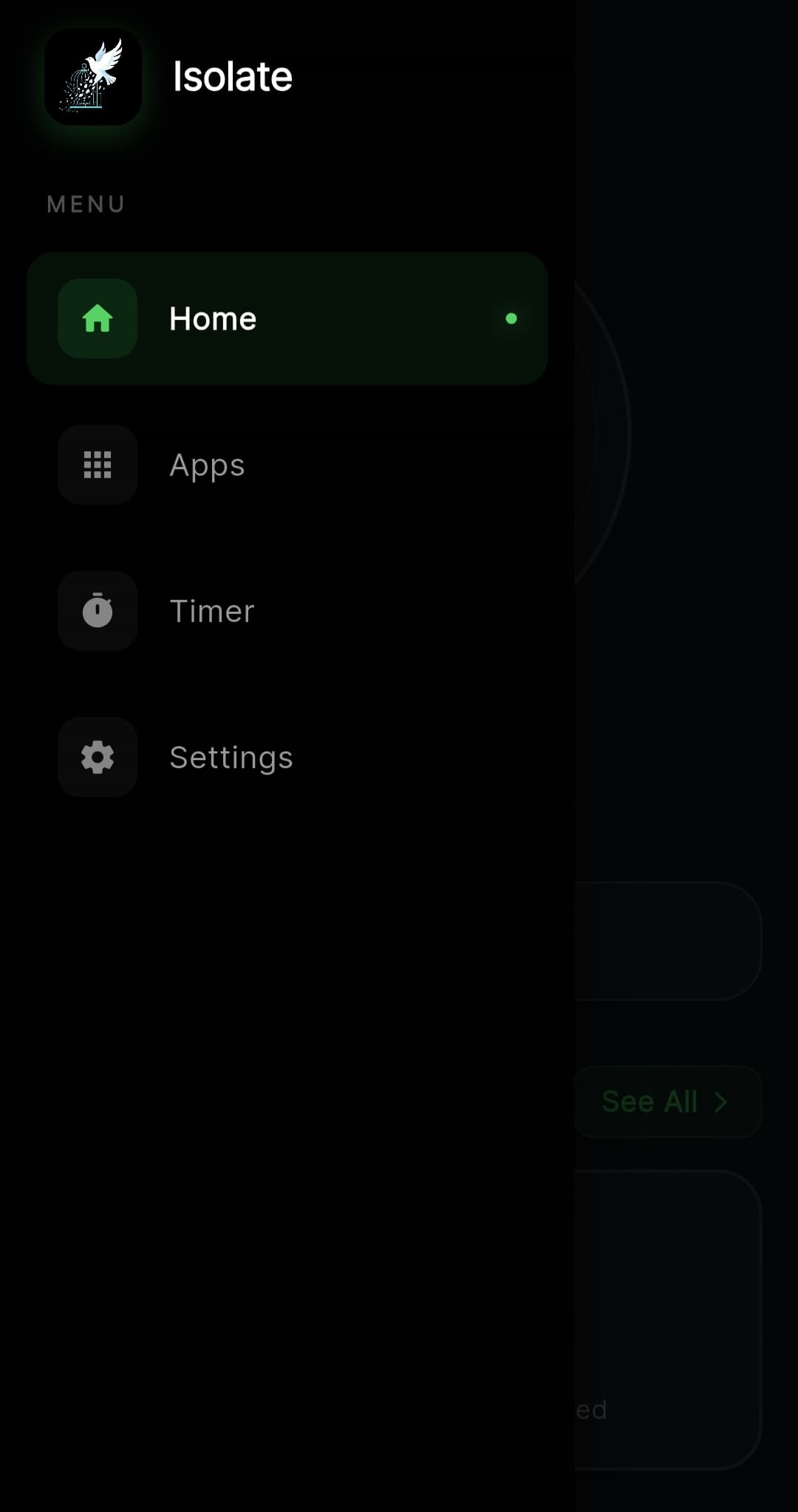
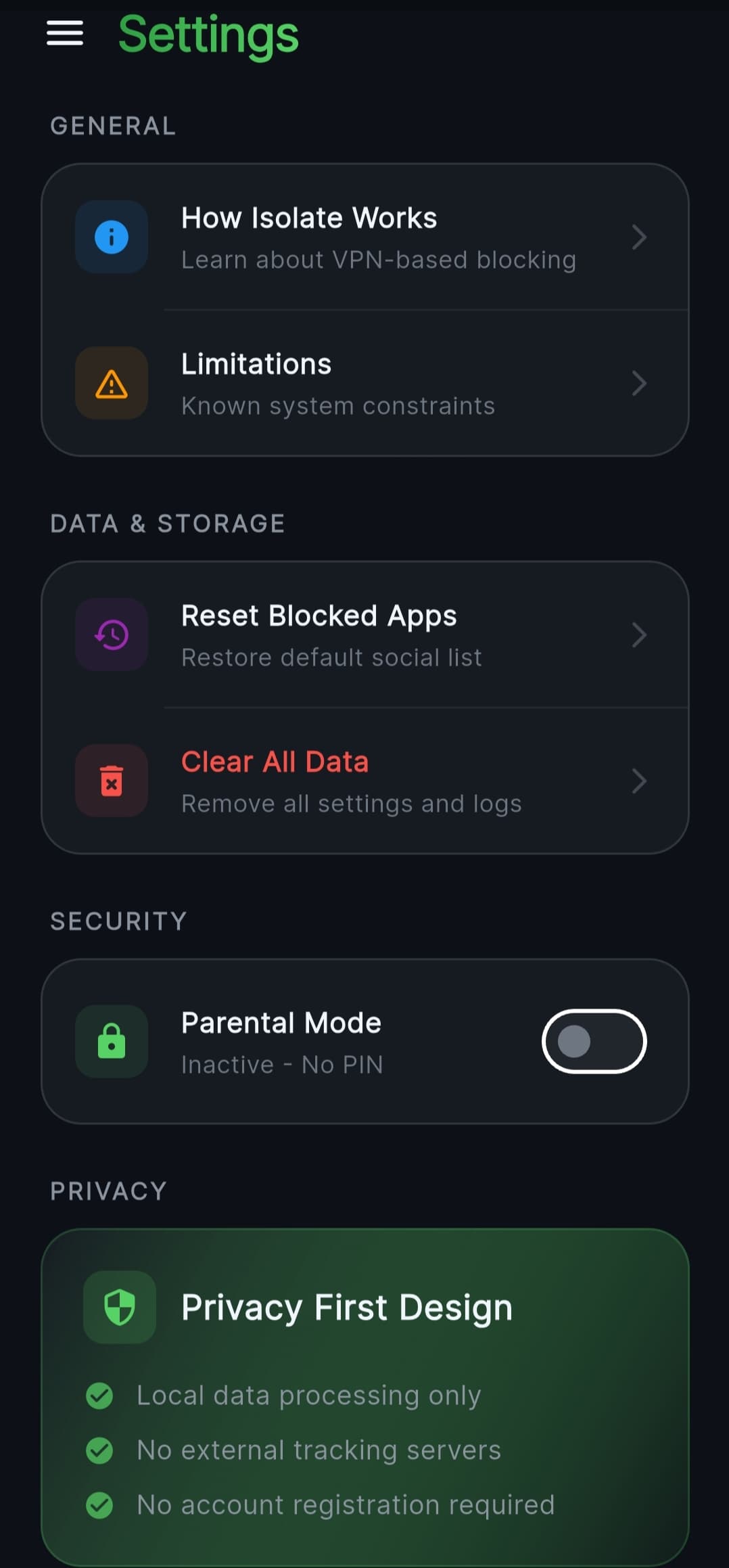
These screenshots show the current Isolate product flow: onboarding, app selection, focus mode, timer, activity, navigation, and settings. They are included here with descriptive alt text so search engines, screen readers, and AI systems can understand the product experience.

FAQ
What is Isolate?
Isolate is an Android app internet blocker and no-root firewall. It lets you choose specific apps and block their internet access over Wi-Fi, mobile data, or both, while other apps on the phone can remain connected.
Can Isolate block internet for specific apps on Android?
Yes. The core use case is per-app blocking. Instead of turning off Wi-Fi or mobile data for the whole phone, Isolate lets you select individual apps that should be disconnected.
Can I block Wi-Fi for one app but keep mobile data available?
Isolate is designed around separate controls for Wi-Fi and mobile data. That makes it possible to block Wi-Fi for selected apps, block mobile data, or block both connection types when you want stricter control.
Does Isolate require root access?
No. Isolate is a no-root firewall. It uses Android VPNService locally, so users do not need to root their phones or modify system partitions to block app internet access.
Is Isolate a real VPN?
Isolate uses Android VPNService, so Android displays it as a VPN-style connection. Its purpose is local traffic control on the device, not routing browsing through a remote VPN server.
Does Isolate send my traffic to an external VPN server?
Based on the app positioning and Play Store listing, Isolate blocks traffic locally on the device and does not require an external VPN server for its app-blocking behavior.
Does Isolate collect user data?
The Google Play listing declares that Isolate collects no user data and shares no data with third parties. Users should always review the current Play Store data safety section before installing any privacy-related app.
Will blocked apps still open?
In most cases, blocked apps can still open, but the parts that need internet access will fail to load or refresh. The exact experience depends on how each app handles being offline.
Can Isolate block background data?
Yes. One of the important reasons to use an app internet blocker is to stop background connections from selected apps, especially social apps, video apps, games, and apps that refresh frequently.
Can Isolate help reduce mobile data usage?
Yes. By blocking cellular access for selected apps, Isolate can help prevent unwanted background data use and reduce accidental data consumption on limited mobile plans.
Can parents use Isolate for child device management?
Isolate can help parents add network-level friction to selected apps on a child device. It should be treated as one layer of device management, alongside clear rules, Android family settings, and age-appropriate supervision.
Is Isolate useful for students?
Yes. Students can block apps such as YouTube, Instagram, TikTok, browsers, games, or messaging apps during study sessions while keeping essential apps connected.
Is Isolate useful for developers and testers?
Yes. Developers and QA testers can use per-app blocking to see how an app behaves with no network, Wi-Fi blocked, or mobile data blocked, without disabling connectivity for the entire phone.
How is Isolate different from NetGuard?
NetGuard is a well-known no-root firewall with detailed rules. Isolate is more focused on fast app internet blocking, focus modes, and a productivity-first experience for users who want simple control.
How is Isolate different from RethinkDNS?
RethinkDNS combines DNS features, firewall tooling, and privacy controls. Isolate is narrower by design, concentrating on blocking internet access for selected apps and helping users focus.
How is Isolate different from AFWall+?
AFWall+ is primarily for rooted Android devices. Isolate does not require root, which makes it more approachable for everyday Android users who want per-app firewall behavior.
Can Isolate improve battery life?
Blocking unnecessary background network activity can reduce some wasted work from selected apps. Battery results vary by device and app behavior, but fewer network wakeups can help.
Where can I download Isolate?
Isolate is available on Google Play at https://play.google.com/store/apps/details?id=com.isolate.app.
Download
Get Isolate on Google Play
Use Isolate when you want Android to stay connected, but selected apps to stop using the internet. Block Wi-Fi, mobile data, or both per app with a no-root firewall built for focus and privacy.

Future Reading: Content Cluster Plan
The best long-term SEO strategy is to make this page the canonical product resource, then surround it with supporting guides that answer narrower questions. These future articles should link back to this page as the main Isolate reference.
- How to Block Internet for Specific Apps on Android
- Android Firewall Explained
- Isolate vs NetGuard
- Isolate vs RethinkDNS
- How Android VPN Firewalls Work
- Reduce Background Data Usage
- Best App Internet Blockers for Android
- Block Wi-Fi for Apps on Android
- Block Mobile Data for Apps on Android
- No-Root Firewall for Android
- App Data Blocker Guide
- Stop Instagram Background Data
- Block YouTube During Work
- Android Focus Mode App Guide
- App Blocking for Students
- Child Device Internet Control on Android
- Android VPNService Explained
- Battery Friendly App Blocking
- Isolate vs AFWall+
- Privacy-First Android Firewalls